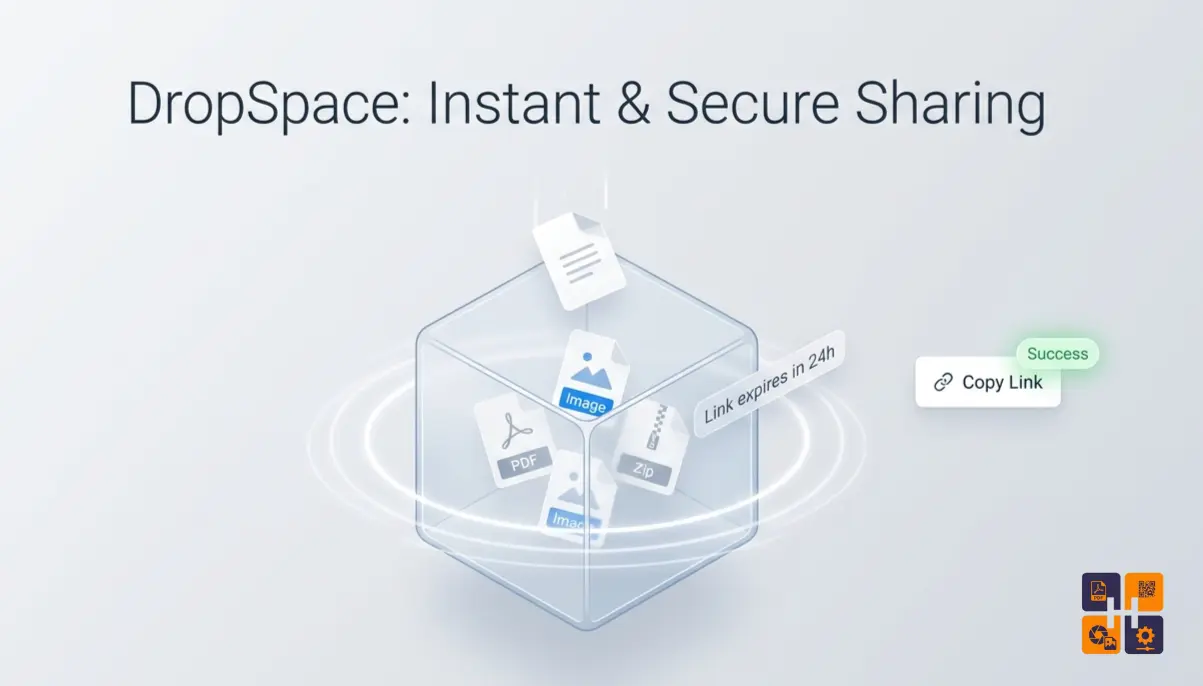
Stop sending sensitive info over unencrypted chats. DropSpace is your temporary digital pocket
designed for the privacy-conscious era.
This guide explains how to use DropSpace to upload, share, and manage files online with a simple
step-by-step workflow.
In an era where data privacy is constantly under threat, DropSpace offers a
seamless, registration-free experience. Whether you are sharing API keys or temporary files, we
ensure your digital footprint remains minimal and secure.
Keep Your Passkey Active!
A generated passkey is temporary. To ensure it remains accessible, you
must save a note, upload a file, or link your email to the vault. Idle passkeys
with no linked data or email will be automatically discarded.
Enhanced Privacy Features
2FA Security
Don’t just rely on a passkey. Enable 2FA and set a custom PIN to
lock your vault from unauthorized access.
Email Recovery
Link your email to your vault. It’s the safest way to recover your
passkey or reset your 2FA PIN if forgotten.
Multi-Sync
Drop a file on your PC and pick it up on your phone instantly using
your unique passkey.
Self-Destruct
Your privacy is guaranteed. All temporary notes and files are wiped
clean periodically.
Seamless Sharing & Accessibility
Once your vault is active (by adding data or linking an email), advanced sharing
features are unlocked in your Settings Page:
- Copy Vault Link:
Share your secure space directly via a unique URL. - QR Code Download:
Instant mobile access by scanning your personal vault QR.
Note: These features
appear only when the vault is populated with data.
Never Lose Access: 2FA & Email Linking
Why link an Email?
Passkeys are hard to remember. By adding your email in the settings,
you can trigger a Recovery Mail to retrieve your lost passkey or reset your
2FA security PIN instantly.
Bulletproof Security
Once 2FA is enabled, your space requires both the Passkey and your
secret PIN. This “Double-Lock” mechanism ensures that your data remains yours alone.
3 Steps to Full Protection
-
1
Setup your Passkey: Generate your unique ID to start your session. -
2
Activate Your Vault: Save a note, upload a file, or link your email to keep the
passkey alive. -
3
Enable 2FA & Share: Set your PIN and use the generated QR code or link for easy
access.